
Your clipboard, on every device.
Everything you copy, saved automatically on Mac, iPhone, and iPad — searchable, pinnable, and one keystroke away.
Free to download. Upgrade once to ClipRing Pro — $7.99, one time. No subscription, ever.
Download on the App Store Download on the Mac App Store
New: iCloud Sync (Pro)
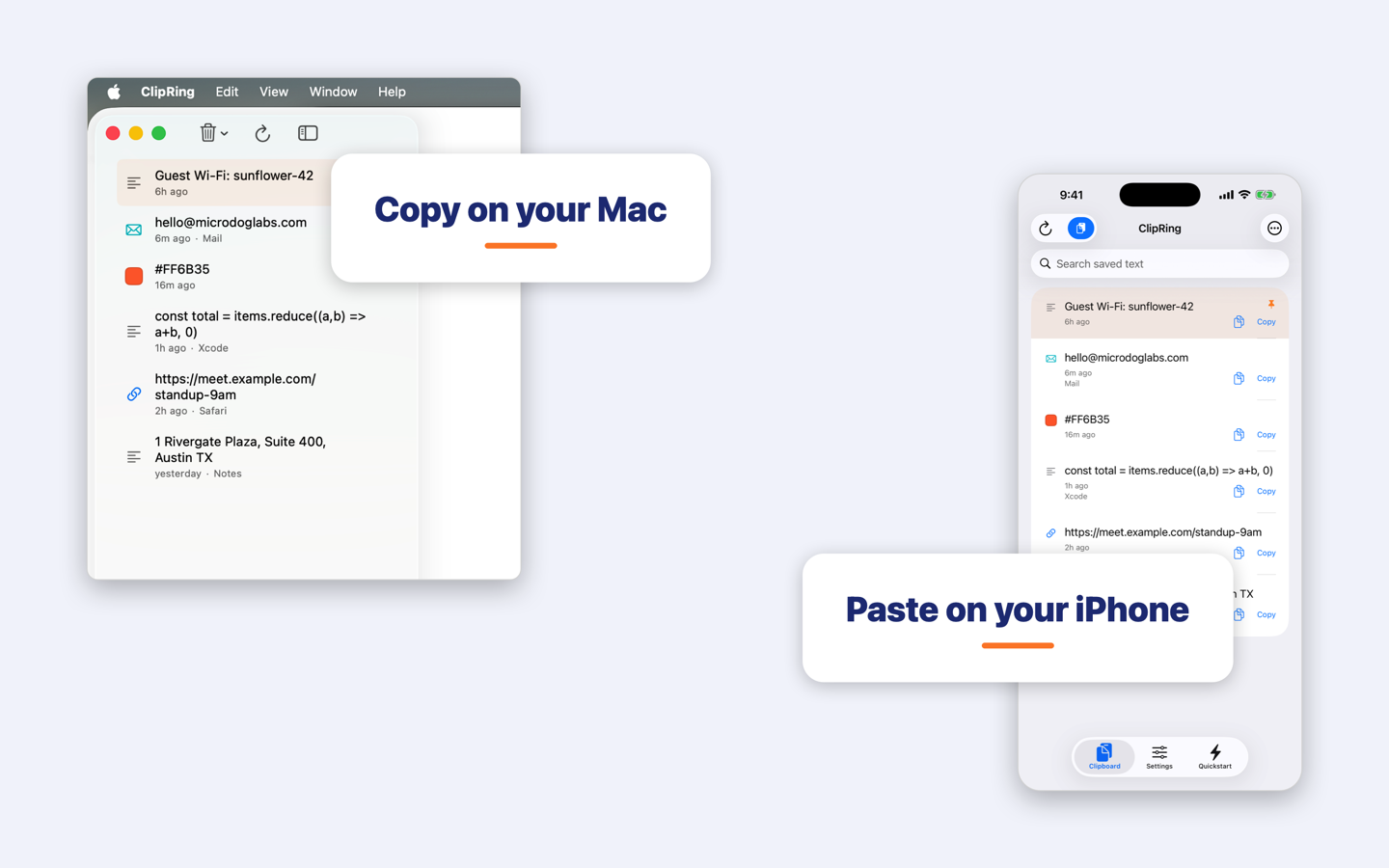
Copy on your Mac, paste on your iPhone. Your history syncs privately through your own iCloud account — never through our servers. One ring, all your devices.
On your Mac
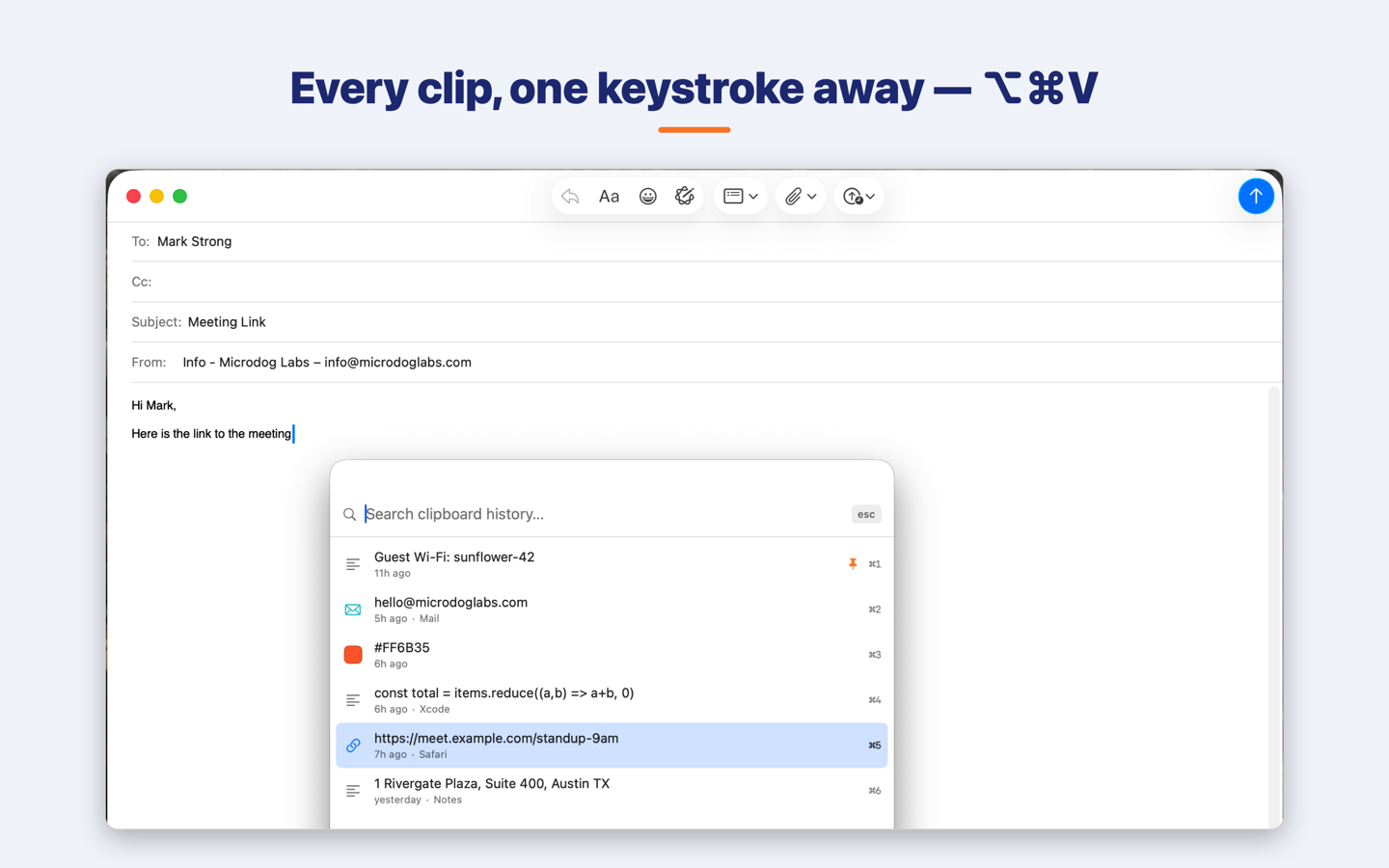
The ⌥⌘V Quick-Paste Palette NEW
Press ⌥⌘V in any app and a Spotlight-style panel appears with your clipboard history. Type to search, press Return, and the clip pastes right into the app you were in. ⌘1–⌘9 paste a row instantly. It’s the fastest way to get that thing you copied twenty minutes ago back under your cursor.
Power features
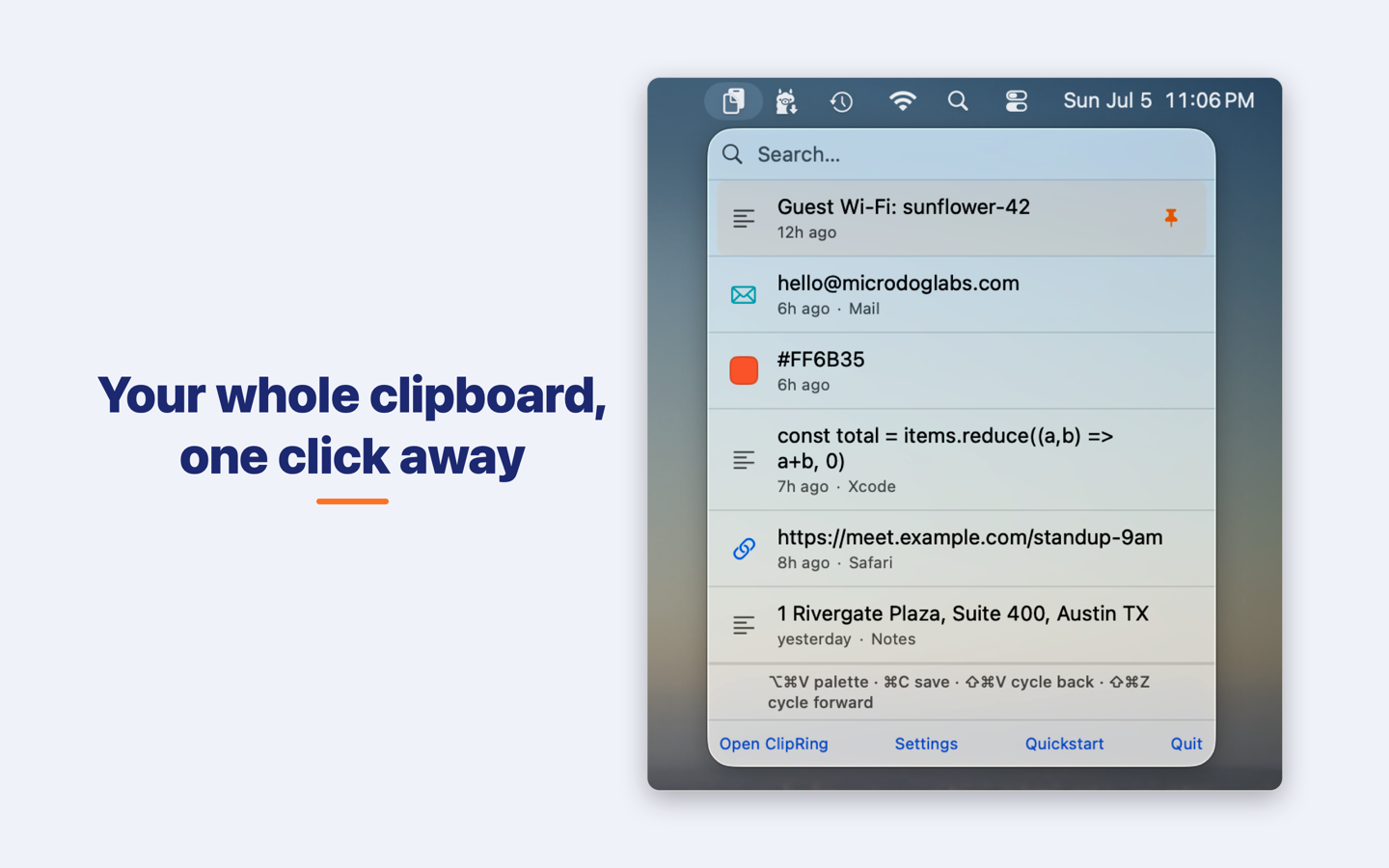
- ⇧⌘V cycles through history in place — works even in terminal apps (iTerm2, Terminal, Warp, kitty and more). Read how we built it →
- Pin favorites — pinned clips never expire and never get pushed out.
- Launch at login, and an optional menu-bar-only mode (no Dock icon).
- Fully configurable — ring size, auto-expiration, deduplication, max text length.
On iPhone & iPad
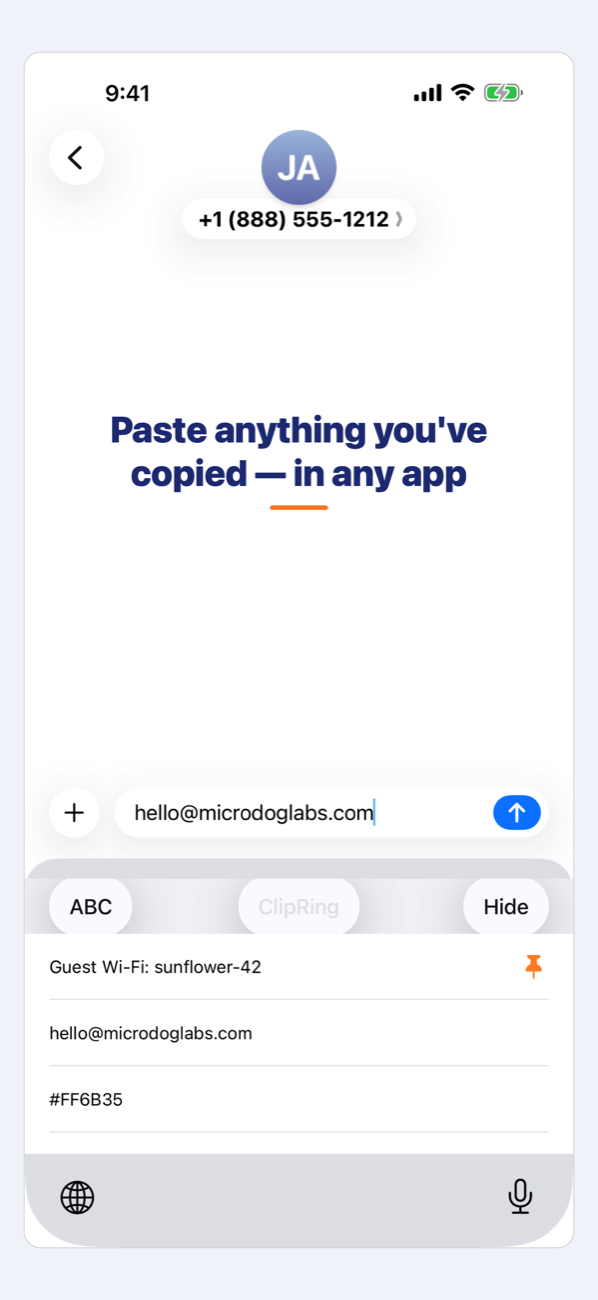
- ClipRing Keyboard — switch to it in any app and tap any saved clip to paste. No app switching.
- Auto-save on open — copy anywhere, open ClipRing, it’s saved. Or use the Share sheet, the import button, or a Back Tap shortcut.
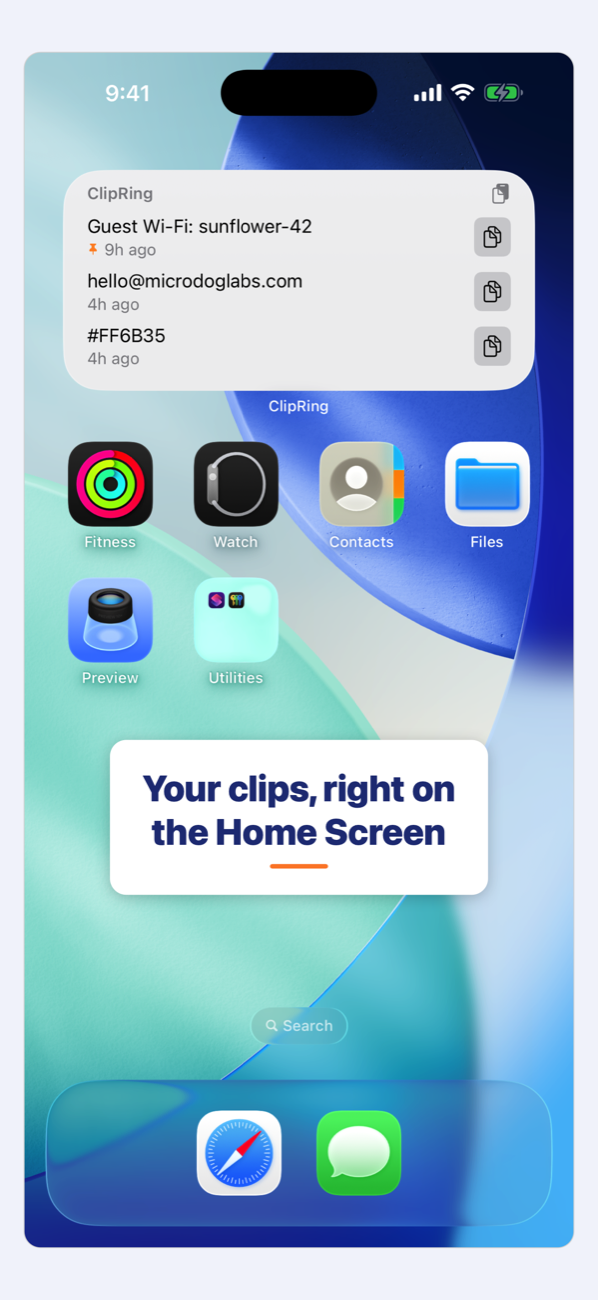
- Home Screen widget — recent clips at a glance; tap to copy without opening the app.
- Shortcuts actions — “Get Latest Clip”, “Save Text to ClipRing”, and “Choose a Clip”, triggerable from Back Tap, Siri, or Spotlight.
Private by design
ClipRing works entirely on your device. Its App Store privacy label is “Data Not Collected” — no analytics, no ads, no tracking. Passwords copied from password managers are automatically excluded and never recorded. Sync, if you enable it, goes only through your personal iCloud account. Privacy policy.
Need a hand?
Setup guides and answers — enabling the keyboard, granting Input Monitoring on the Mac, stopping the “Allow Paste?” prompt, Shortcuts and Back Tap, sync — live on the ClipRing Support page. Or email clipring@microdoglabs.com.
Free vs Pro
| Free | Pro — $7.99 once | |
|---|---|---|
| Clipboard capture, palette, keyboard, Share sheet, widget | ✓ | ✓ |
| History size | 10 most recent | Up to 100 |
| Pinned clips | 1 | Unlimited |
| iCloud sync across devices | — | ✓ |
Bought ClipRing 1.x when it was a paid app? You get Pro automatically — thank you for the early support.